

Opening the Image Cropper
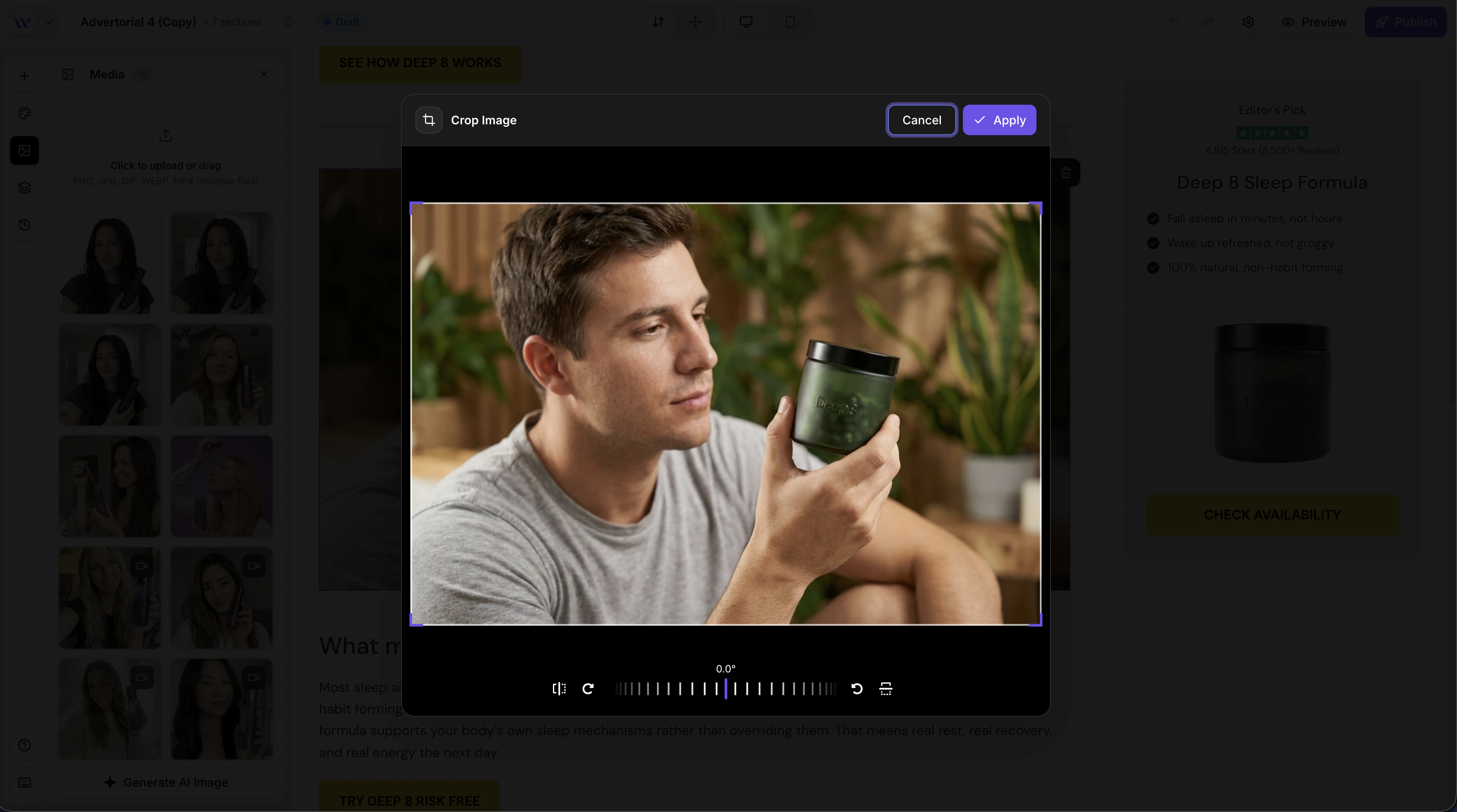
Using the Cropper
The image cropper provides a canvas-based interface for precise cropping.Basic Cropping
- Drag the crop area — Click and drag within the image to reposition the crop frame.
- Resize the crop area — Drag the edges or corners of the crop frame to adjust the size.
- Zoom — Use pinch-to-zoom or scroll to zoom in and out on the image.
- Pan — Click and drag the image to reposition it within the crop frame.
Saving Cropped Images
Automatic processing
The cropper extracts the selected area from the canvas, converts it to WebP format, and uploads it to your media library.
WebP Conversion
Cropped images are automatically saved in WebP format, regardless of the original image format. This provides:- Smaller file sizes — WebP compression reduces file sizes significantly compared to JPEG or PNG
- Faster loading — Smaller images load faster on your published Shopify pages
- Consistent format — All cropped images use the same format for uniformity
Before and After
When you open the cropper, you see the full original image. As you adjust the crop frame, only the selected area will be saved. The original image is not modified — a new cropped version is created and uploaded as a separate file in your media library.Common Use Cases
Cropping product photos
Cropping product photos
Remove unnecessary background from product photos to create cleaner, more focused images. Crop tightly around the product for detail shots, or leave more space for lifestyle context.
Adjusting hero banner images
Adjusting hero banner images
Reframing screenshots
Reframing screenshots
If you are using screenshots or UI images, crop out unnecessary browser chrome, toolbars, or whitespace to show only the relevant content.